Layer Manager
All basemaps and gas distribution layers used in the application are managed through this panel. The user can change the basemap, toggle thematic layers such as building-line-valve visibility, and quickly control symbology and opacity settings for each layer.
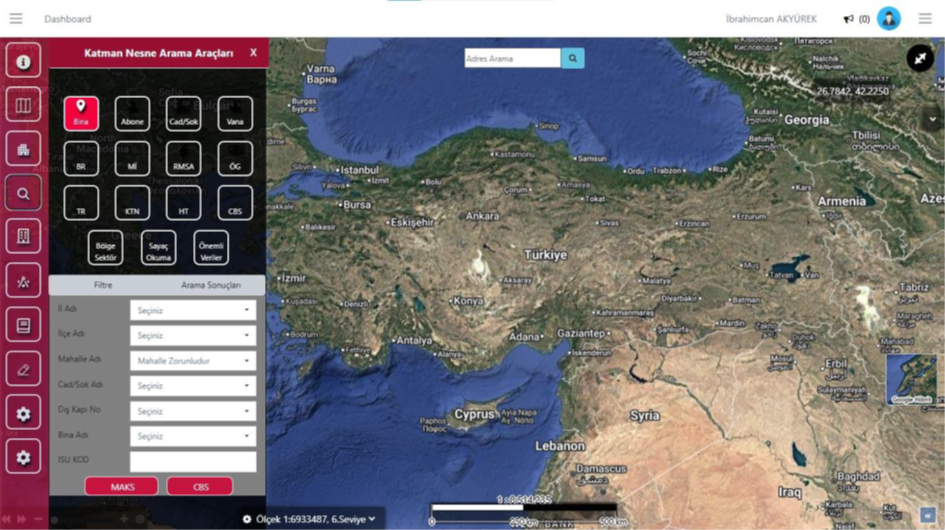
Layer Object Search Tools
This screen enables detailed map-based querying of all assets in the gas distribution infrastructure—buildings, subscribers, valves, pipelines, service boxes, meters, and other critical elements. The user selects the object type to search and filters by criteria such as province, district, neighborhood, street, exterior door number, or building name. Results appear instantly in the list and on the map, enabling fast, accurate, and location-based access to all field assets.
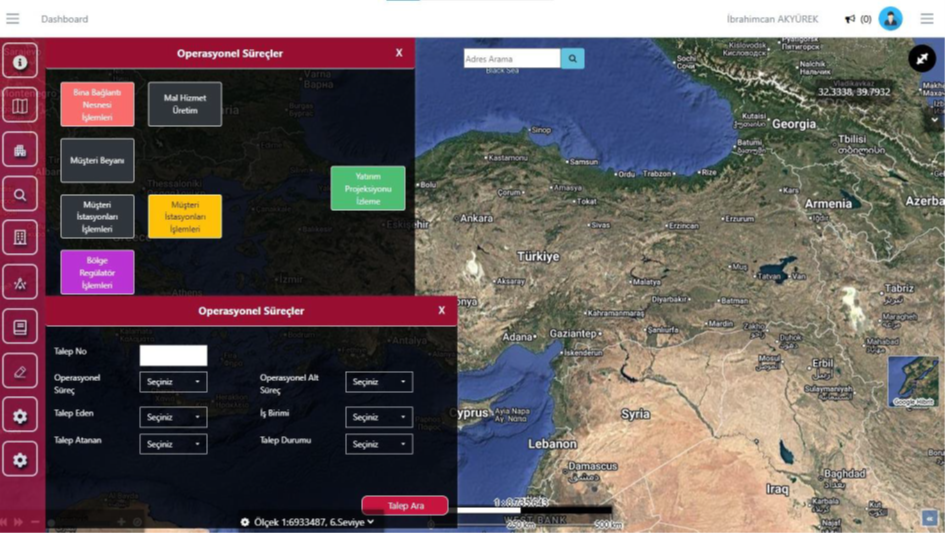
Operational Processes
This screen is the hub for initiating all operations and field activities. From here, the user can select many operation types such as building connection, customer declaration, station, and regulator processes to open the relevant workflow. The search panel at the bottom also allows filtering and viewing existing operation requests. This enables both starting new operations and tracking ongoing processes from a single point.
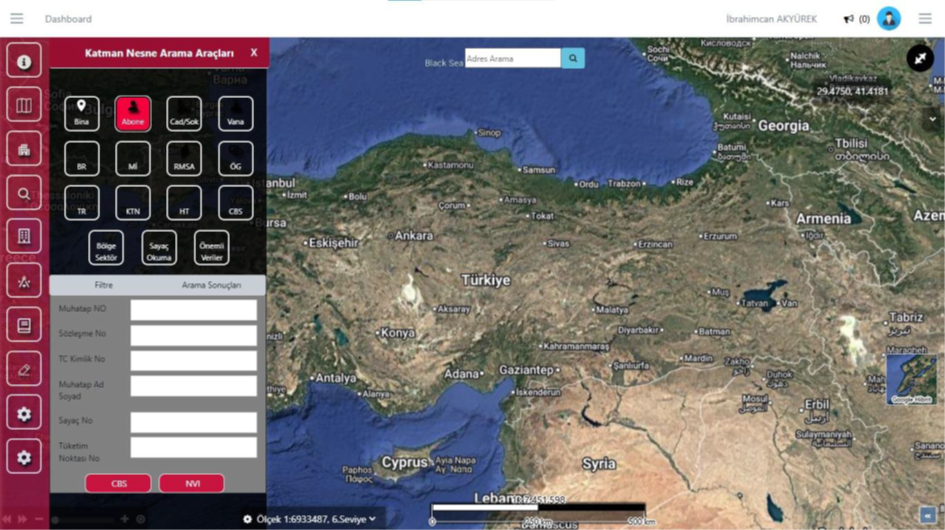
Subscriber Search Tool
This screen is used to quickly find all subscribers in the field. By entering the counterpart number, contract number, Turkish ID, meter, or consumption point information, GIS or NVI data for the subscriber can be accessed directly. It provides detailed subscriber queries from a single point.
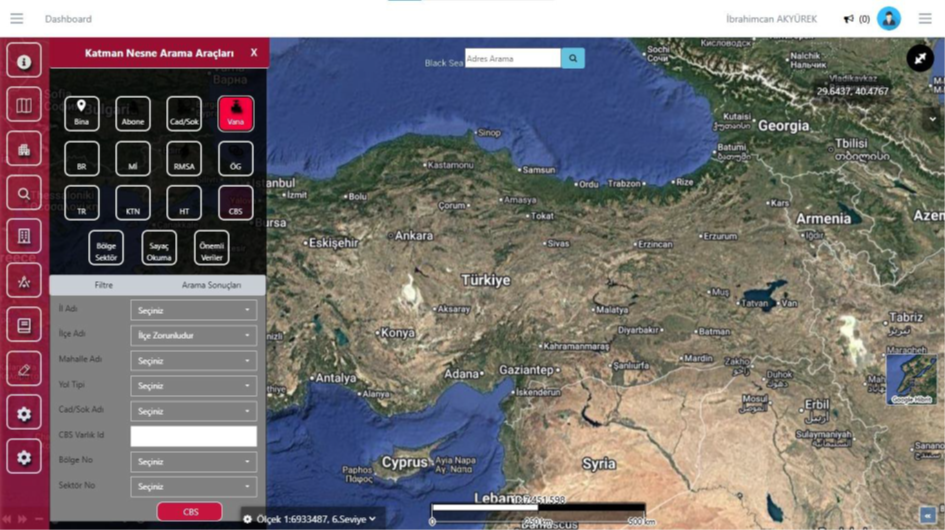
Valve Search Tool
This screen is used to quickly locate all valve assets in the field. By entering province, district, neighborhood, road information, or GIS asset ID, the relevant valve is instantly marked on the map. It provides one-step access to valve locations critical for operations.
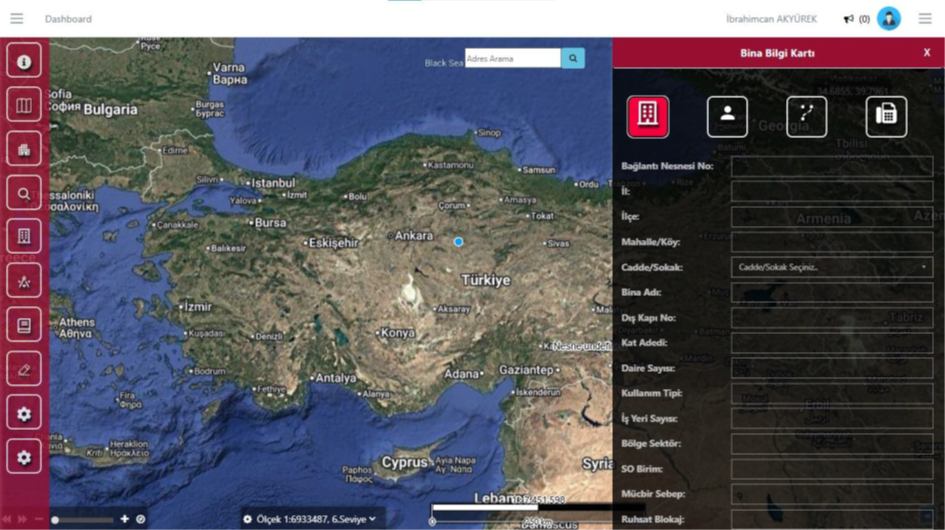
Building Information Card
This screen displays all GIS and subscription data for the selected building in a single panel. Along with address components such as province, district, neighborhood, street, and door number, details like building name, floor information, usage type, number of workplaces, region sector, and service area are shown on this card. When any building is selected on the map, the card opens automatically and serves as the starting point for all building-focused operations.
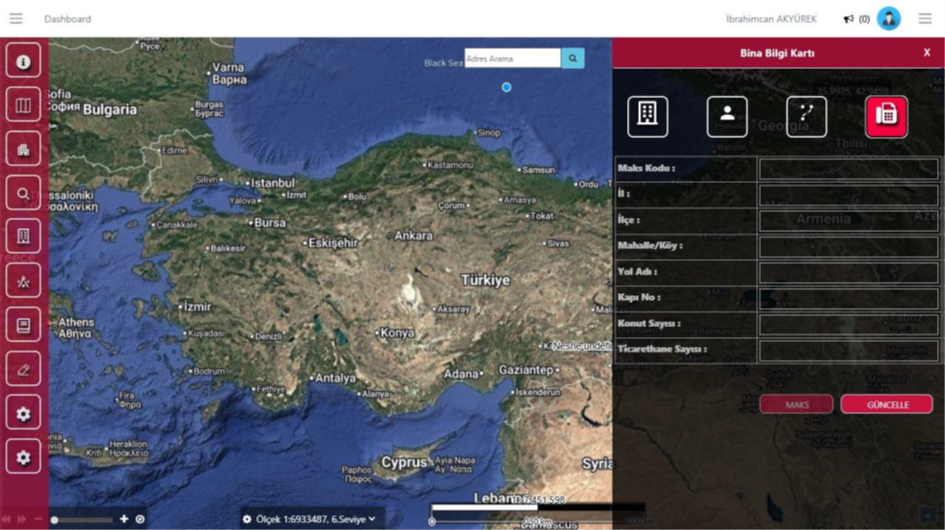
Building Information Card - MAKS Tab
This screen is used to quickly view and update MAKS data for the selected building. Official address components such as province, district, neighborhood, road name, door number, and the number of residences and commercial units can be edited in this tab. When a building is selected on the map, the card's MAKS tab becomes active and address verification is performed here. Changes made with the "Update" button are applied instantly to the system.
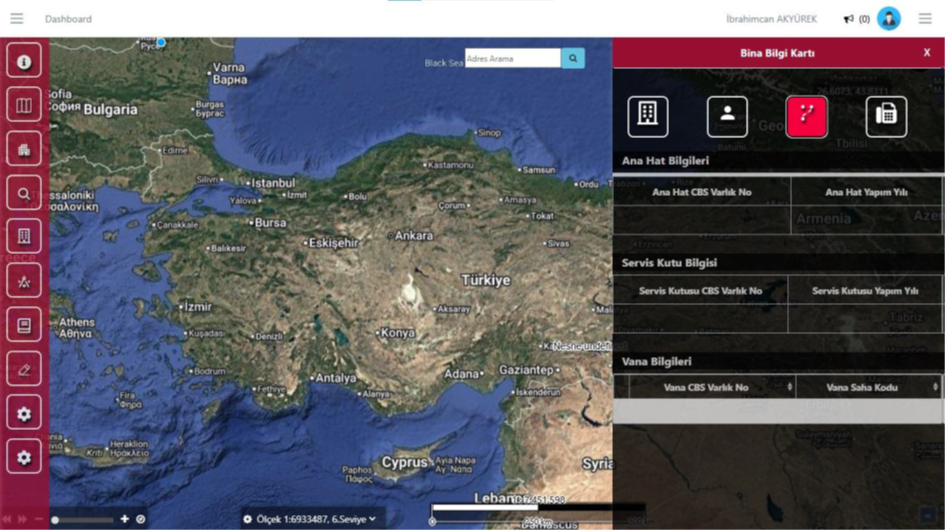
Building Information Card - Line and Equipment Information Tab
This tab shows all field equipment connected to the building, such as the main line, service box, and valves, on a single screen. It opens automatically when a building is selected on the map and displays technical details like GIS asset numbers, construction years, and field codes for the relevant infrastructure elements. It is used to quickly analyze the building's physical connection to the network.